


The landscape of Security Information and Event Management (SIEM) solutions has changed. SIEM solutions historically were complicated, expensive and difficult to manage. However, today’s cloud based SIEMs are far more accessible to businesses.
By adopting a cloud native SIEM, like Microsoft Sentinel, you don’t have to build or maintain any infrastructure and there are no upfront costs. You only pay for what you use.
So, should you ditch your current SIEM for Microsoft Sentinel? We’ll let you decide. Here are 8 reasons why we think it’s worth considering.
Rapid Deployment time
Unlike traditional on-premises SIEM systems that have long deployment times and require a lot of configurations, a Microsoft Sentinel deployment can be completed in substantially less time with a fraction of the resources.
This, coupled with Sentinel’s hundreds of out-the-box integrations, means that you can begin generating actionable insights from your event logs faster than ever before.
Microsoft Sentinel has seamless security integrations
By leveraging the power of the Microsoft Cloud, Sentinel takes traditional SIEM technologies to the next level to monitor your entire IT estate – irrespective of whether your workloads exist in Azure, on-premises or non-Microsoft cloud platforms.
Azure Sentinel comes with a rich portfolio of native and third-party integrations that strengthen your organisation’s security capabilities. This is achieved through connectors that connect to data sources across your entire IT estate.
By leveraging AI and machine learning, Sentinel is continuously learning and becoming ‘smarter’ as it’s being fed data from your environment. Thus, the more data sources you have connected, the more value Sentinel can provide.
Makes threat protection smarter and faster with machine learning and artificial intelligence
With traditional SIEM solutions, legitimate behaviors and actions are frequently misclassified as correlated attacks. These alerts are called False Positives, and they drain the time, resources and willpower of the IT teams investigating them. This is commonly referred to as alert fatigue and can cause legitimate threats to dwell in your environment for longer.
Sentinel uses artificial intelligence and machine learning that’s been built up over the past decade to ensure that it only notifies you of the security incidents that require your immediate attention. Thus, eliminating false positives and keeping your IT security teams checked in.
Scalability
Sentinel allows businesses to swiftly deploy and customise their SIEM. There’s no need to fuss about installing hardware or performing manual maintenance and upgrades. And since it’s built on Azure, it offers virtually limitless cloud scale while addressing all your security needs.
Better yet, Microsoft Sentinel takes care of updates and patches for you, without requiring any additional cost or effort.
Reduced downtime
The cloud now plays a crucial role in mitigating downtime for business-critical applications. Built-in load-balancing and automated fail-over make Azure a secure, robust platform for operations. By moving your SIEM into Azure, you can take advantage of the same availability benefits. Logs continue to be collected and analysed, ensuring that no alerts are missed, and that disruption is minimised.
From an operational standpoint, reducing downtime will help you maintain a resilient security posture and address issues swiftly. Improving your SIEMs availability will also help to reduce downtime across the rest of your IT estate.
Better Value for Money
As is the case with all of Microsoft’s cloud solutions, Microsoft Sentinel is billed on a per-usage basis. Thus, shifting your SIEM to the cloud allows your business to take advantage of the operational expenditure (OpEx) payment model and avoid hefty capital investment into on-premises infrastructure.
Sentinel also avoids the problem of estimating future storage requirements or purchasing additional capacity that gathers dust until it is required. Instead, cloud storage can be activated whenever required – and you never pay for it until it is used. Once factors like licensing, storage and infrastructure are considered, Azure Sentinel is typically 48% less expensive to run than other on-premises SIEM solutions.
Compliance
In today’s hybrid cloud world, managing the network security perimeter and detecting unauthorised access has become increasingly challenging. However, regulatory bodies make no allowances for complexity.
Microsoft Sentinel is designed to address the specific challenges of hybrid operating environments – even in the most heavily regulated industries:
- The cloud-based platform offers massive scalability potential so you can collect and retain vast amounts of security log data.
- Support for all common log formats means that Sentinel can track security issues across all of your systems, regardless of where they are located.
- Security logs are centralised and collated into a single platform. This makes it easier to assess the IT estate as a whole or to drill down into its constituent parts.
- Using bookmarks and notebooks, your SOC team can document complex security issues for review by auditors or law enforcement.
- Converting notebooks into playbooks will formalise your response to future security events, ensuring that the SOC team are properly prepared to act quickly.
Microsoft’s proven security pedigree
Given the importance of the cloud in corporate IT plans, Microsoft has been actively investing in protecting the Azure platform, paying upwards of $1 billion every year. This rate of spend beats other SIEM suppliers, making it very appealing to companies trying to strengthen their own defenses. Because of this consumer trust, Microsoft generated $10 billion in sales in 2021, a 40% increase over the previous year.
Better yet, Microsoft Security is a Leader in four of the Gartner Magic Quadrant™ reports.
Looking to test-drive Microsoft Sentinel in your organisation?
Find out how Microsoft Sentinel could benefit your organisation with our Microsoft Sentinel Cloud Accelerator Workshop. During this workshop, you’ll get an overview of Azure Sentinel along with insights on active threats to your Microsoft 365 cloud and on-premises environments.
It’s no secret that the past two years have reshaped how we engage in work and think about security, accelerating the widespread adoption of cloud and remote-access solutions. The security perimeter of today’s workplace extends far beyond the office, and organisations require a security solution that’s able to keep pace with flexible working patterns and provide a centralised view across a decentralised digital estate.
Introducing Microsoft Sentinel, Microsoft’s cloud-native Security Information and Event Management (SIEM) and Security orchestration, automation and response (SOAR) solution.
In this article, we’ll cover the key differences between traditional, on-premises SIEM solutions and Microsoft Sentinel – Microsoft’s cloud-native SIEM solution.
What are SIEMs and SOARs?
SIEM, or Security Information and Event Management, is a security system that assists organisations in identifying possible security threats and vulnerabilities before they interrupt business operations. It detects anomalous user behavior and uses artificial intelligence to automate many of the manual processes associated with threat detection and incident response. It has become a staple in modern security operation centers (SOCs) for security and compliance management use cases.
SOAR, or Security Orchestration, Automation, and Response, refers to technologies that allow businesses to collect inputs that are monitored by the security operations team. Alerts from the SIEM system and other security technologies help define, prioritise and drive standardised incident response activities by employing a combination of human and machine power.
What is Microsoft Sentinel?
Microsoft Sentinel is a cloud-native SIEM and SOAR solution that gives you a birds-eye view across your organisation’s entire technology ecosystem. It monitors signals and data from all applications, services, infrastructure, networks, and users – irrespective of if it exists in Azure, on-prem or other cloud services.
Where Sentinel fits in with your security stack
Microsoft Sentinel sits at the very top of your security ecosystem by integrating and gathering data from all your existing security solutions. Meaning, the more security solutions you have in place, the more value Sentinel can provide. Sentinel leverages AI and machine learning that’s been built up over the past decade, Sentinel scans all the signals from your environment and only alerts you of the critical security events that require your attention.
How Microsoft Sentinel compares to traditional SIEMs
Is now the perfect time to ditch your traditional SIEM solution for Microsoft Sentinel? We’ll let you decide by comparing the two on a cost, usability, performance and ease of deployment basis. Let’s dive straight into it.
Cost
A key difference between traditional and cloud native SIEMS is start-up costs. On-premises solutions require large capital investment into hardware and software that needs to be manually upgraded and maintained over time. Microsoft Sentinel significantly reduces your infrastructure costs by shifting spend from Capex to Opex. Meaning, you pay for what you use with no up-front costs. In late 2020, Forrester released a report titled The Total Economic Impact of Azure Sentinel, that highlighted the cost benefits of the Sentinel. Here’s what they found:
- A three-year 201 percent return on investment (ROI) with a payback period of less than six months.
- A 48 percent reduction in costs compared to legacy SIEM solutions, saving on expenses like licensing, storage, and infrastructure costs.
- A 79 percent reduction in false positives and 80 percent reduction in the amount of labor associated with investigation, reducing mean time to resolution (MTTR) over three years.
- A 67 percent decrease in time to deployment compared to legacy on-premises SIEMs.
Usability
With traditional SIEM solutions, legitimate behaviours and actions are frequently misclassified as correlated attacks. These alerts are called False Positives, and they drain the time, resources and willpower of the IT teams investigating them. This is commonly referred to as alert fatigue and can cause legitimate threats to dwell in your environment for longer.
Ease of use is a key trend among cloud solutions, and Microsoft Sentinel is no different. Sentinel uses artificial intelligence and machine learning that’s been built up over the past decade to ensure that it only notifies you of the security incidents that require your immediate attention. Thus, eliminating false positives and keeping your IT security teams checked in. And since it’s built on Azure, it offers virtually limitless cloud scale while addressing all your security needs.
Performance
Detection analysis in on-premises SIEMs is frequently postponed until traffic flow is less taxing on the system. When the SIEM’s events per second (EPS) were set to their maximum, querying and correlating data became much slower.
Threats can be identified in real-time with a modern cloud based SIEM, such as Microsoft Sentinel, with less bandwidth overhead and enhanced processing power. As logs are delivered into the SIEM, they are analysed instantly. Because the technology is hosted on the Microsoft cloud and scales automatically, the collection of logs has no effect on the speed at which it queries and correlates data.
Ease of deployment
Historically, SIEM solutions were riddled with complications, necessitating a high level of knowledge to deploy and manage. However, today’s cloud based SIEMs are built to be easy to deploy and administer by anyone with a basic understanding of IT. Meaning, organisations do not need to hire additional personnel to manage it. This not only affects the cost of deploying a SIEM, but also the deployment lead times.
The deployment process for an on-premises SIEM is manual and very lengthy. However, due to the nature of SaaS, high availability and ease of deployment comes as part of Microsoft Sentinel’s design. Sentinel allows businesses to swiftly deploy and customise their SIEM. There’s no need to fuss about installing hardware or performing manual maintenance and upgrades. And since it’s built on Azure, it offers virtually limitless cloud scale while addressing all your security needs.
With on-premises SIEMs, keeping up to date with new technologies and capabilities can be overwhelming and often very costly. In contrast, Sentinel takes care of updates and patches for you, without requiring any additional cost or effort.
Common SIEM challenges faced by IT Security professionals
Last year, Panther Labs conducted research that surveyed over 400 security professionals who actively use a traditional SIEM solution as part of their day-to-day work to gain insight into their current SIEM challenges, desires and frustrations. Here’s what they found:
- 18% of respondents indicated that it took more than 12 months to deploy and implement their SIEM solution
- 24% said that the biggest challenge with their SIEM platform was too many alerts
- 46% said that cost of their SIEM solution did not align with its capabilities
- More than 50% of respondents stated that they are dissatisfied with their current SIEM platform’s visibility
- The largest group of respondents said big data infrastructure and scalability would be the two most important capabilities if they were evaluating a new SIEM vendor
Looking to trial Microsoft Sentinel for your organisation?
Find out how Microsoft Sentinel could benefit your organisation with our Microsoft Sentinel Cloud Accelerator Workshop. During this workshop, you’ll get an overview of Azure Sentinel along with insights on active threats to your Microsoft 365 cloud and on-premises environments.
As a software vendor, you’re always looking for new ways to modernise your application through innovation and efficiency. Most organisations migrate their application to the cloud to benefit from continuous integration and delivery. And if you don’t keep up with this change, your application will soon become outdated and quickly fall behind your competitors.
If you aren’t familiar with DevOps, read our blog post How DevOps compares to traditional development methods.
Recap on DevOps
Microsoft defines DevOps as; A compound of development (Dev) and operations (Ops), DevOps is the union of people, processes and technology to continually provide value to customers.
By adopting a DevOps culture alongside the right practices and tools your team will be able to efficiently respond to customer needs and build applications quicker than ever. DevOps brings together siloed jobs such as IT operations, development teams, quality assurance and security to create a more fluid way of working that encourages collaboration. Which enables you to produce better applications or software by having all of those roles working towards a common goal.
According to the Accelerate State of DevOps report 2019, the cloud has positively impacted the DevOps process by enabling you to achieve:
- 106x faster lead time from committing to deploy
- 208xmore frequent code deployments
- 2604xfaster time to recover from incidents and
- 7xlower change failure rate.
What is DevOps as a Service
DevOps as a Service is an emerging solution that’s becoming increasingly popular in application development. It moves traditional collaboration between the development and operations teams into the cloud. This enables a lot of the processes to be automated via stackable virtual tools. In short, adopting DevOps as a Service allows you to improve unit testing, code tracking and review, automated deployment, bug tracking and monitoring.
So, what are the benefits of adopting DevOps as a Service?
Increased team efficiency and faster deployments
Adopting DevOps as a Service will enable you to increase your team’s efficiency and enable faster deployments. Why? Because you’ll be adopting some of the latest cloud tools that’ll facilitate and orchestrate DevOps. Having these tools enables your business to set up automation that will help you create an efficient software delivery process.
Enables your team to focus on innovating your application
Enabling DevOps as a Service will enable your developers to focus on what they do best, innovating and improving your application. This is because they will have access to best-in-class tools and have the right processes in place to allow for shorter development time, increased collaboration and faster delivery time. You’ll also be able to leverage your cloud partners’ knowledge and support.
The business case for DevOps as a service
If you’re looking to create a scalable application in the cloud, then DevOps as a Service is a solution you should consider leveraging. You’ll be able to reap all the benefits listed above which will enable your business to grow, increase developer velocity, leverage modern tools and continuously develop your application.
Leverage modern ways of working
It’s important to ensure that your developers are following modern ways of working and have the latest tools available at their disposal – allowing them to build efficiently, collaborate securely, and scale innovation. This is why it’s crucial that your business adopts modern ways of working, such as DevOps, Microservices and Containers, and the latest tools, such as Azure, GitHub, Visual Studio and PowerApps. Not only will this enable your business to work effectively, but it would also allow you to attract industry-leading talent that wants to stay with your business. Organisations with strong tools are 65 percent more innovative and have 47 percent higher developer satisfaction and retention rates than those in the lowest quartile for Developer Velocity.
Increase developer velocity
Did you know that organisations with Developer Velocity in the top quartile achieve 4-5 times faster revenue growth and 55% higher innovation?
Empower your developers to drive innovation. We all know that software development is at the heart of your application, and by increasing developer velocity you’ll be able to continue driving business performance. Adopting DevOps as a Service allows you to create the right environment for your developers and to encourage them to collaborate and contribute to the software development.
Grow your business
Adopting DevOps as a Service enables your organisation to continuously develop your application, allowing you to keep growing your business by extending your Product Lifecycle Curve. Leveraging DevOps as a Service will enable you to leverage new tools and processes so developers can react to the market quicker by having an effective way to release application patches and updates.
DevOps as a Service with Microsoft
With almost 70% of organisations already leveraging Microsoft Azure, it offers the easiest route to enabling a hybrid of full cloud environment for your business. Over the years Microsoft has invested heavily into making sure they’re able to offer developers the best possible toolset. Some of the tools you’ll be able to leverage to improve the way you build applications are:
- Azure boards
- Azure Pipelines
- Azure Repos
- Azure Test Plans
- Azure Artifacts
- Azure Marketplace
- Azure Pipelines
- Azure Kubernetes Service (AKS)
- Visual Studio
- Azure Monitor
- GitHub
You can learn more about what Microsoft DevOps tools has to offer on their website.
Are you looking to explore DevOps as a Service?
The benefits of adopting DevOps as a Service are endless and can help drive efficiency and innovation for your business. So, if you’re looking to start implementing DevOps as a Service, look no further. We’re a Microsoft DevOps, Application Development and Application Integration partner. In other words, there’s no better partner to have on your side.
Ready to find out how you can start adopting DevOps as a Service within your business? Simply get in touch to speak to our DevOps experts.
Sources
McKinsey & Company: Driving business outcomes through Developer Velocity 2020 and McKinsey Developer Velocity Survey, Expert Interview
McKinsey & Company: Driving business outcomes through Developer Velocity 2020 and McKinsey Developer Velocity Survey, Expert Interview
The truth is anyone can move to the cloud. However, building a well-structured Azure environment that’s optimised for your business can be tricky. That’s why Microsoft has created two best practice frameworks to support your organisation in getting to the cloud, and leveraging it once it’s there. These frameworks are known as the Cloud Adoption Framework and Azure Well-Architected Framework.
If you’re looking to follow best practices for adopting and optimising Azure, then look no further. In this blog, we’ll be diving into what the Cloud Adoption Framework and Azure Well-Architected Framework are, how they work together, and how you can put them to use.
Cloud Adoption Framework
The Cloud Adoption Framework (CAF) is a collection of proven documentation, implementation guidance, best practices, and tools from Microsoft designed to help businesses move to Azure with confidence. This framework should be used by businesses that are looking to migrate to Azure and want to create a highly optimised environment from the get-go.
There are six stages to the CAF, and each stage has been crafted to help you accelerate your cloud adoption journey. The six stages of the Cloud Adoption Framework are:
1. Strategy: Start by understanding your business objectives to identify how Azure can support them
2. Plan: Align your people, processes and technology to map your cloud migration plan
3. Ready: Prepare your environment and start deploying your first landing zone
4. Adopt: During this stage, you can either migrate your on-prem environment to the cloud or innovate your digital estate leveraging cloud-native technologies
5. Govern: Create benchmarks and implement a governance minimum variable product to help you stay on track
6. Manage: Monitor your environment through data collection and alerts to ensure you’re following best practices
Think of the CAF framework as your guide to navigating your cloud migration.
Learn more in our Beginners Guide to the Cloud Adoption Framework.
Azure Well-Architected Framework
The Microsoft Azure Well-Architected Framework provides technical guidance specifically at the workload level across five different pillars; cost optimisation, security, reliability, performance efficiency, and operational excellence. Aligning to the Azure Well-Architected Framework will allow you to build highly optimised Azure infrastructure.
This framework should be used by businesses that are looking to optimise their cloud investment and ensure they’re aligning to best practices.
Think of the WAF framework as your guide to maximising your Azure investment. If you’re in Azure, there’s no excuse to not be following the WAF.
Learn more in our blog post, The Five Pillars of the Azure-Well Architected Framework.
So how do the Cloud Adoption Framework and the Azure Well-Architected Framework work together?
These two frameworks can be used at various points of your cloud journey to help maximise your Azure investment. In short, the Azure Well-Architected Framework helps you optimise a specific Azure workload, and the Cloud Adoption Framework is your reference point for migrating to the cloud according to best practices.
If you’re new to the cloud, then you should begin by leveraging the Cloud Adoption Framework. The six stages Microsoft has identified are crucial to ensuring you have a successful migration. It’s important that you really focus on building an effective plan and strategy before migrating.
Once you’ve migrated or built an application in the cloud, it’s time to start looking at the Azure Well-Architected Framework. Microsoft carefully crafted these five pillars to guide you in creating optimised workloads in Azure.
If you’re already in Azure and want to explore how to continue your cloud journey, then check out our Assessments & Workshops page. Whether you’re looking to optimise your current cloud environment, strengthen your security practice, or look towards an AI future, we have the assessments and the expertise to light the way.
The Microsoft Azure Well-Architected Framework provides technical guidance specifically at the workload level across five different pillars; cost optimisation, security, reliability, performance efficiency and operational excellence. Aligning to the Azure Well-Architected Framework will allow you to follow Microsoft’s best practices.
So, you’re looking to learn more about the Azure Well-Architected Framework pillars? You’re in luck. In this blog, we will be explaining what the Azure Well-Architected Framework is and discussing each of its Five Pillars.
What is the Azure Well-Architected Framework?
The technology requirements of your business naturally change over time. Deploying business-critical applications can increase complexity and overheads substantially. To help manage this ever-growing complexity, Microsoft has created the Azure Well-Architected Framework, which follows strict industry guidelines to provide a set of Azure best practices.
The Azure Well-Architected Framework isn’t just for businesses that are looking to migrate to Azure. It can also be used by businesses who have already adopted the Microsoft Cloud and want to align their environment to best practices. Microsoft provides businesses with a Well-Architected Framework score to show how aligned you are to the best practices and areas you can improve concerning the five pillars.
The Five Pillars of the Azure Well-Architected Framework
The Azure Well-Architected Framework is made up of five pillars that outline industry best practices. The Five Pillars of the Azure Well-Architected Framework are:
- Cost management
- Performance efficiency
- Reliability
- Security
- Operational excellence
Each one of these pillars will enable your business to build a high quality, stable and efficient cloud architecture whilst having the ability to continuously optimise your workloads against Azure best practices. Ready to find out more? Let’s dive into what each of these five pillars involves.

Pillar one: Cost optimisation
The first pillar, and often the pillar most businesses are looking to optimise, is cost. When optimising costs, you should start by monitoring and analysing your Azure bill by setting budgets, pre-planning any Azure spend for teams, projects and future investments. But the optimisation doesn’t stop there. You should implement cost controls within your Azure Environment so your teams can work within the constraints of your spending policies and objectives. This allows you to manage costs and maximise the value you derive from Azure.
Pillar two: Performance efficiency
Your workloads must be able to scale to provide users with an optimal and cost-effective experience. Microsoft says that your performance efficiency should match application resource capacity to demand; enabling you to easily scale resources, identify & optimise bottlenecks, and optimise application code for peak performance. Optimising your Azure environment for performance efficiency will improve the ability of your system to adapt to changes in the workload.
Pillar three: Reliability
When using Azure, you want to design and operate mission-critical systems with confidence. The second pillar to the Azure Well-Architected Framework is reliability – which is a system’s ability to recover from failures and continue to function. You should start by defining availability and recovery requirements, then identify any possible failure points to determine how the application will respond to failure. You should then respond to failures by determining how best to address them based on established strategies.
Pillar four: Security
Azure is the cloud you can trust thanks to Microsoft’s investment of more than $1 billion in research and development by 3,500 security experts. However, secure workloads require more than a secure foundation. The third pillar of the Azure Well-Architected Framework is security. Microsoft says it’s important for you to consider your workload security as much as the platform you use. It’s important you leverage the tools, training and best practices available to help you not only detect but also respond to any security threats across your Azure environment.
Pillar five: Operation excellence
The final pillar in the Azure Well-Architected Framework is Operation Excellence. This involves the operations process that keeps applications running in production by implementing modern development practices like DevOps. For deployments to be reliable, they should be automated to minimise any human error. Any automation you implement should be a quick and repeatable process to avoid slowing down the release of new features. Finally, to achieve operational excellence, you must use monitoring and diagnostics to give operational insights to your systems and solutions.
Sources: https://azure.microsoft.com/en-gb/blog/introducing-the-microsoft-azure-wellarchitected-framework/
Azure Well-Architected Framework Recommendations
Are you looking to align your business to the Azure Well-Architected Framework? We’re offering a personalised 10-minute video from one of our Azure Experts, who will highlight recommendations on how to align your Azure environment to the Azure Well-Architected Framework. Want to claim your free video? Simply follow the link below.
According to a recent government study, two in five businesses in the UK have reported having experienced cybersecurity breaches or attacks in the last 12 months. Of these, one in five respectively ended up losing money, data or other assets. With cybercrime at an all-time high, it’s become increasingly important for organisations to understand how their security measures up.
Thankfully, by having Microsoft in your corner, you’re already half of the way there. As part of their $1bn annual investment in security, Microsoft has created the Microsoft Secure Score – a security tool that helps you measure and understand your organisation’s security posture.
So, what exactly is your Microsoft 365 Secure Score?
Check out this short clip from one of our Secure Score webinars, where we give a quick overview of what the Microsoft Secure Score is:
As a Microsoft 365 user, you’ll have access to a Secure Score that’s located within your Security Centre. Your Secure Score dashboard gives you access to robust visualisations of metrics, trends, integration with Microsoft products, score comparison with similar organisations, and much more. Your overall score is displayed as a percentage, with a higher number indicating a stronger security posture. Pretty straight forward, huh?
In a nutshell, your Secure Score helps you:
- Report on the current state of your organisation’s security posture.
- Improve your security posture by providing you with discoverability, visibility, guidance, and control.
- Compare your organisation’s security with industry benchmarks and establish security key performance indicators (KPIs).
How to start improving your Microsoft Secure Score
Alongside your score, you’ll have a list of recommended actions that can help improve your security rating. The recommendations will highlight the maximum score you’re able to achieve for each control and how those improvements could potentially increase your overall Secure Score. Thus, allowing you to identify which improvements will have the biggest impact on your overall security. It’ll also show you the number of resources affected by each control and each resource’s impact on your overall score.
You’re given points for the following actions:
- Configuring recommended security features
- Doing security-related tasks
- Addressing the improvement actions with a third-party application or software, or an alternate mitigation
So, how exactly is your score calculated? Your Secure Score considers your entire Microsoft security set-up and analyses which controls you’ve enabled and set up. The percentage itself is calculated using the formula below. You can find out more about how this is calculated on Microsoft’s website.

Whilst Microsoft provides a list of recommended improvements along with the impact they will have on your overall score, these improvements are simply based on best practices and won’t always be the best option for your business. It is therefore important that you really take some time to interpret the recommendations in the context of your business or speak to an expert about it (Psst… That’s us!).
If the past year has taught us anything, it’s that how we work is far more important than where we work from. Across the globe, remote working has become the norm and it’s opened up a plethora of opportunities for the modern workplace. Which, by the way, will undoubtedly be hybrid.
Hybrid Working is on the rise and with an end to the COVID-19 pandemic in sight, we’ve already seen an uplift in businesses adapting to this way of working. One such example is that of Nationwide, the UK’s largest building society who recently told 13,000 of their staff to ‘work anywhere’. And they’re in good company. The Work Trend Index: 2021 Annual Report, found that:

So, what exactly is the Hybrid Workplace and Hybrid Working?
Apart from being a slick sounding buzzword, the Hybrid Workplace is a business model that’s geared towards the need for increased flexibility in modern business. It’s by no means a new concept; however, it has become increasingly relevant as more and more businesses plan their post-pandemic way of working.
Hybrid Working allows some employees to work remotely, be that in a coffee shop or at home, while others work on-premises. Having your cleaning staff work from home probably isn’t the best idea, however, other teams such as Development and Marketing could greatly benefit from this model.
“Over the past year, no area has undergone more rapid transformation than the way we work. Employee expectations are changing, and we will need to define productivity much more broadly — inclusive of collaboration, learning, and wellbeing to drive career advancement for every worker, including frontline and knowledge workers, as well as for new graduates and those who are in the workforce today. All this needs to be done with flexibility in when, where, and how people work.” – Satya Nadella, CEO at Microsoft
The benefits of Hybrid Working
While there are several factors to consider before implementing Hybrid Working, such as technology, the nature of your work and the socioeconomic factors that may inhibit your workforce’s ability to work from home, Hybrid Working carries significant benefits when implemented correctly.
1. Improved productivity
A well-structured Hybrid Workplace creates a culture that empowers employees to work to their strengths. Through increased flexibility and independence, employees have the freedom to work when and where they are most productive. Employees will be able to experience the best of both worlds by using the office for scheduling on-premises days for meetings and collaboration, and remote days for tasks that require focus.
In an interview with BBC, Baruch Silverman, founder of personal finance website The Smart Investor, said: “We try to use home working days less for video sessions and more for the tasks that require concentration. A task that may take several hours in the office may be completed in just an hour or two at home.”
“We try to use home working days less for video sessions and more for the tasks that require concentration.” – Baruch Silverman, founder of The Smart Investor
2. Increased employee wellness and satisfaction
Mental wellness
Hybrid Working grants employees the ability to structure work around the rest of their lives, not the other way around. It removes the stress of everyday commuting and allows employees to work without the pressure of only being able to tend to non-work-related commitments when they get home after a long day at the office.
Physical wellness
Working from home provides people with disabilities or medical conditions the chance to work comfortably while staying connected. Having a more flexible working schedule allows employees to accommodate healthy eating habits and a regular exercise routine. You’re also able to decrease health exposure risks. Fewer in-house employees mean you’re able to lower the risk of colds, flu, or any other illnesses spreading around the office.
3. Remove geographical restrictions when recruiting new talent
Removing geographical restrictions allows businesses to access larger talent pools by leaning on remote work as a permanent fixture of talent acquisition. The Work Trend Index: 2021 Annual Report found that Forty-six percent of remote workers are planning to move to a new location in the next year because they can now work remotely. The report also noted that remote job postings on Linkedin increased more than 5 times between March and December 2020. By recruiting nationally (or even globally), you’re able to build teams with rich cultural and experiential diversity as well as capitalise on time-zone differences. Thus, allowing you to offer 24/7 customer support or the ability to bring in some extra brainpower during peak business hours.

Become an attractive forward-thinking employer
Less geographical restrictions mean more opportunities for jobseekers. Gone are the days where you could attract and retain talent by simply offering them a flashy salary. As we start transitioning to the new way of working, employees will come to expect flexibility and consideration towards their well-being. It’s therefore crucial that you position yourself as a forward-thinking employer by having the right technology and an effective hybrid working strategy in place.
4. Cost savings
With a flexible workforce, the need for fixed office space changes – allowing you to make significant savings on costly overheads such as electricity and rent. It’s common practice among hybrid companies to have a small office space for on-premise staff and separate meeting rooms and hot-desking areas for employees with irregular working patterns. These working areas may be situated in-house or rented from shared workspace companies like WeWork.
5. Be prepared for an uncertain future
The COVID-19 pandemic has shown us that life as we know it can be flipped upside down in an instant, which is why it’s crucial that businesses remain agile and prepared for change. The Hybrid Working model empowers you to do this by already having the right technology, structure and employees in place to adapt to unexpected circumstances.
Conclusion
While there is still a lot of uncertainty about the future of work, there is also a massive opportunity for forward-thinking businesses to get a better handle on employee well-being and productivity, while benefiting from the cost efficiencies of Hybrid Working. Now is the perfect time for organisations to establish their Hybrid Working strategy and take advantage of the significant cost savings of diverting spend from physical assets to technology. As is always the case, the businesses who fully embrace change with a growth mindset are the ones who will develop a better workplace for everyone.
Windows 365 takes the Windows operating system to the Microsoft Cloud, allowing users to securely stream all their applications, tools, data and settings to any personal or work devices. In this article, we’d like to help you make sense of Microsoft’s new solution by covering what it is, what the benefits are and the impact it’ll have on the way you work.
Why Microsoft launched Windows 365
As the world starts to navigate its way out of the challenges brought about by the pandemic, businesses are once again bracing for massive change and disruption. While Hybrid Working presents some exciting new opportunities, it also comes with its own fresh set of obstacles for security, productivity and collaboration between on-premises and remote employees.
That’s where Windows 365 comes in. As was the case with Microsoft Teams at the start of the pandemic, businesses need to look to the right technology to facilitate their Hybrid Working strategies.
“With Windows 365, we’re creating a new category: the Cloud PC. Just like applications were brought to the cloud with SaaS, we are now bringing the operating system to the cloud” – Satya Nadella, CEO Microsoft
So, what exactly is Windows 365?
Windows 365 is Microsoft’s latest cloud solution and the first-ever Cloud PC. What is a Cloud PC? Glad you asked. A Cloud PC is a highly available, optimized, and scalable virtual machine providing end-users with a rich Windows desktop experience. It’s hosted in the Windows 365 service and is accessible from anywhere, on any endpoint.
Each Cloud PC is assigned to an individual user and is their dedicated Windows device. Assigning a Cloud PC to a user is just like assigning an Exchange Online mailbox to a user. When a Windows 365 license is assigned to a user, a new Cloud PC is automatically provisioned and enrolled into Microsoft Endpoint Management.
By taking the Windows operating system to the Microsoft cloud, users can securely stream their Windows experience to any device with an internet connection. By combining the power and security of the cloud with the versatility and simplicity of the PC, Windows 365 enables a wide variety of new Hybrid Working scenarios relating to flexibility, simplicity and security.
Why Windows 365 is the perfect Hybrid Working solution
With Windows 365, Microsoft wanted to create a Hybrid Working solution that was familiar, simple and, most importantly, secure. Let’s take a dive into some of the core benefits of using Windows 365 for Hybrid Working:
Leverage the power of the cloud
By utilising a per-user-per-month pricing model, Windows 365 users have the option of running either Windows 10 or 11 (once it’s available later this year) and the ability to scale the processing power and storage of their Cloud PCs based on their individual needs. Another benefit of having your PC hosted in the cloud is that it’ll come equipped with a gigabit internet connection, allowing you to download and upload critical files at lightning speed.
Simplicity for users and IT teams
Windows 365 allows you to embrace flexibility regardless of when, where or how you work. The state of your Cloud PC always stays the same – meaning that you’re able to pick up where you left off with a consistent Windows experience, irrespective of the device you’re using.
For IT teams, Windows 365 also makes deploying, updating and managing Cloud PCs simple by removing the need for any virtualisation experience. Furthermore, Windows 365 is optimised for endpoints, allowing you to procure, deploy and manage Cloud PCs for your organisation just as you would physical PCs through Microsoft Endpoint Manager.
Small and midsize businesses can purchase Windows 365 directly through Microsoft and set it up in a few clicks or through a cloud service provider (psst… that’s us!), allowing you to focus on scaling your business while we get things up and running for you.
Zero Trust security capabilities
Having been designed for a hybrid world, Windows 365 is built on the principles of Zero Trust and leverages the security benefits of the cloud – allowing users to store and secure information in the cloud as opposed to on their device. In addition to this, your Cloud PC will automatically be kept up to date with the latest patches and updates, building on the strength and capabilities of rich Microsoft security solutions such as Azure Active Directory.
Five practical examples of how Windows 365 could simplify the way you work
There’s no doubt that Windows 365 will form part of many businesses’ Hybrid Working toolkit, so let’s take a dive into some of the practical ways in which Windows 365 might benefit those who adopt it:
Flexible working – With Windows 365, employees will have the ability to get the same work done on a tablet in a waiting room, a laptop in a hotel or on their desktop while they’re at the office with a consistent Windows experience across all devices. The possibilities for flexibility are endless.
Issuing new hardware – Windows 365 makes deploying hardware incredibly simple. Seasonal workers can ramp on and off according to the needs of the business, allowing the organisation to scale for busy periods without the complicated logistical and security challenges of issuing new hardware.
Disaster recovery – Windows 365 ensures continuity and access for your workforce and company data even in the most challenging circumstances allowing you to quickly respond to changing workplace situations to mitigate negative impact and seize opportunities.
Strategic deployment of resources – With Windows 365 companies can be more targeted in how they outfit specialised workers in creative, analytics, engineering, or scientific roles who need greater computing power and access to critical applications.
Securing organisational and customer data – With its built-in Zero Trust capabilities, organisations can address the growing complexity in compliance without sacrificing productivity.
Windows 365 vs Azure Virtual Desktop (a brief overview)
Azure Virtual Desktop has become extremely popular this past year and we’ve been getting a lot of questions about how it compares to Windows 365. There’s a lot to talk about when discussing these two solutions, which is why we’ll be publishing a dedicated article on the topic soon. In the meantime, if you’d like to get some more information about Windows 365 vs Azure Virtual Desktop, please get in touch with one of our experts here.
Windows 365 — A complete software-as-service (SaaS) solution that securely streams your personalised Windows experience – including all your apps, content and settings – to any device with an internet connection.
- Windows 10 and Windows 11 personalised desktops
- Management and deployment with familiar desktop tools and skills
- Predictable per-user pricing
- Optimised for simplicity.
Azure Virtual Desktop — A flexible cloud virtual desktop infrastructure (VDI) platform that securely delivers virtual desktops and remote apps with maximum control.
- Windows 10 and Windows 11 personalised and multi-session desktops and remote app streaming
- Full control over management and deployment, plus options for Citrix and VMware integration
- Flexible consumption-based pricing
- Optimised for flexibility.
The past year has fundamentally changed where, when and how we work, and more than ever we’re reminded that work is something you do, not somewhere you go. With the rise of hybrid working, flexible working patterns will soon become the new norm, with employees spending some days at the office and some days at home.
It’s crucial that businesses take the time to look ahead with strategic focus and find answers to the following questions: How will you accommodate flexible working patterns, and do you have the technology in place to fully capitalise on the benefits of hybrid working?
In this blog, we’ll dive into what we believe to be a core piece of the hybrid working puzzle: Azure Virtual Desktop (AVD).
What is Azure Virtual Desktop?
Azure Virtual Desktop is a complete desktop and application virtualisation solution that runs on the cloud. In the past, virtual desktop solutions have been complex and expensive to set up and manage, making them inaccessible to most small and medium businesses.
By utilising the cloud, AVD changes that. Instead, it’s a cost-effective solution that is easy to deploy, configure and scale. And like all Microsoft Cloud Services, it’s completely flexible to your business needs. Making it the perfect solution for your Hybrid workplace.
What are the benefits of using AVD as a hybrid working solution?
Set your business up for remote working success
The Hybrid Workplace will be built on having the power to work from anywhere – whether that’s at the office, a coffee shop or home. Allowing employees to have the flexibility to work from any device used to be a headache, but not anymore. As long as employees have an internet connection, they can power up, log in to their desktop and they’ll be equipped with any business-critical applications, regardless of their device.
AVD gives you the ability to choose what Azure VM will meet their team’s needs and leverage the Windows 10 multi-session that’s exclusively available in Azure. Windows 10 multi-session means you can run multiple concurrent user interactive sessions easily with the same deployment for more cost-efficiency.
Secure your most valuable assets – data and applications
Gone are the days when a business’s most valuable IT asset was their hardware – in more recent years we’ve seen this shift to data and applications. Whilst a Hybrid workplace is a great way to provide employees with the flexibility of working where they want, you need to make sure you have the right security in place, so you don’t put your data and applications at risk.
Microsoft kept this at the forefront of their mind whilst developing Azure Virtual Desktop, and you’ll be able to benefit from the $1 billion security investment Microsoft makes every year. You’ll experience this through:
- Being able to store all employee and company data within Azure
- Benefitting from Azure security features including; Sentinel, Azure Security Center and Microsoft Defender ATP
- Have employees use a secure login with multi-factor authentication
You’ll also reap the benefits of the Azure Virtual Desktop compliance certifications including ISO 27001, 27018 and 27701, PCI, FedRAMP High for Commercial and HIPAA.
Scaling up and down has never been easier
AVD allows you to scale your infrastructure up or down quickly and easily based on your business needs. Allowing you to not only save resources but save on costs too. Within Azure Virtual Desktop you’ll have a centralised portal where you can configure networks, deploy desktops and enable security for employees in just a few clicks.
What’s best is you’ll be able to focus on your desktop apps and policies whilst Microsoft manages the rest. Find out more about scaling up and down with Azure Virtual Desktop on Microsofts website.
Leverage what you already have
Already using other Microsoft products, like Azure or Microsoft 365? You’re going to love hearing this. Azure Virtual Desktop enables employees to benefit from the seamless Microsoft Teams and Office experience they’re used to on a local device. Plus, you’ll be able to utilise your current Microsoft licencing if you have Microsoft 365 Business Premium or above.
Want to find out more about Azure Virtual Desktop? Talk to the experts.
The benefits of Azure Virtual Desktop are endless – especially when it comes to providing a flexible work environment. If you want to find out more about Azure Virtual Desktop or have any burning questions, then you’re in luck. Microsoft has identified us as one of a handful of Azure Virtual Desktop Specialist Partners.
As the spread of Covid-19 changes working practices for businesses all over the world, the requirement for staff to be able to work from home effectively is in the spotlight more than ever before. It has been predicted that at its peak, 20% of the UK could be off work.
There can be no doubt that instructing employees in high-risk areas to work from home can be an effective strategy for stopping the spread of the virus, but how can you manage the potential implications for business productivity?
CNN has called the outbreak the ‘biggest work from home experiment in history’ and the changes bought about from it have the potential to permanently change the way that many businesses work in the long term if they prove to be successful.
Microsoft has released some guidance on the issue, and staff at leading companies across the world have already been advised to work from home wherever they can.
Many organisations are facing the prospect of making the transition to a work from home culture almost overnight, with little time to prepare or implement new tools or policies.
At Cloud Direct we already have a distributed workforce, with staff working from home and our offices in various locations.
Our remote working policy is well established and has been refined over time, so what are some of the key factors we have learnt that you could learn from?
Make use of the tools available for working from home
Many businesses already have access to unified communication tools that are not being used to their full potential. One of the most common and effective of these applications is Microsoft Teams. The full Teams solution is included in all Office 365 subscriptions of Business Premium or above, and there are even free tiers you can use to get started with connecting your users.
Microsoft Teams includes a range of features to keep your organisation productive whilst everyone works from home, including:
- Live chat and collaboration features to keep communication lines open
- Video call capabilities built in to keep meetings going ahead
- Connected apps for collaborative work on files
- 3rd party integration for a wide range of apps and plugins
At Cloud Direct, Teams is central to our business, with the majority of meetings both internal and external set up through the application and all files accessible through integration with Sharepoint. Our team members communicate and collaborate easily wherever they happen to be located all through the single application view that Teams provides.
Communicate, Communicate, Communicate
Having staff working remotely makes communication crucial. Even more so than before. It’s easy for team members to quickly feel isolated when they are used to the natural conversations that occur throughout a working day in an office.
Combat this by setting regular catch up calls during the working from home period. Have a set time each day where all members of a team can ‘huddle’ and share their task list, any planned meetings and cover any recent updates or achievements can make a big difference to the morale and spirit of a remote team.
At Cloud Direct each manager runs these regular huddles, ensuring all team members are included and contributing to the shared goals of the business. Supplemented by the chat feature in teams, this regular communication means one of the key blockers to remote and home working is overcome.
Consider how teams work differently
Using technology to work remotely may come as second nature to many, with some of the more tech-savvy departments and staff in businesses potentially already using applications such as Slack or Microsoft Teams to collaborate on tasks and communicate wherever they are.
Others may need a period of adjustment to make working from home effective for them and may require additional support and training to allow them to be productive. It’s important for team members must be provided with the tools they need to feel comfortable in their newly adapted roles, even if the working from home period is a short term enforced one.
Enabling these workers in the short term to adapt to the current situation will pay off further in the long term when they are enabled to work and collaborate in new ways.
Make security your #1 priority
When staff start working remotely, they will be connecting from networks that are not provided or controlled by the company. This can increase the risks associated with their work and you should have the tools and policies in place to guard against this.
Before moving to a work from home policy ensure you’ve got all grounds covered. Make sure you’ve taken the simple steps such as enabling Multi-Factor Authentication for all users. If you are providing laptops and other equipment to staff, ensure that they have up to date firewalls, device encryption, web filtering and other security measures applied. Set clear policies for working on public Wi-Fi networks and add encrypted VPNs where possible so that sensitive information is not being accessed on open networks. Providing a secure workplace, in and out of the office, should be a priority for your business.
These steps should be supported by regular training and security awareness updates for staff. In the case that working from home needs to be enforced at short notice, create a clear one-page document that aligns the key security policies and expectations for your organisation that is accepted by all team members before they start remote working.
Getting started with working from home
Whether widespread working from home will be enforced in the UK over the coming months remains to be seen. However, by implementing effective tools and creating robust policies, you can put your business in a strong position for building a flexible and adaptable modern workforce enabled by technology.
Over the past year cyber security has become an increasingly hot topic, and for good reason. A recent study by the UK government found that two in five businesses (39%) and one in four charities (26%) have reported having experienced cyber security breaches or attacks in the last 12 months. In this article, we’ll take a dive into Microsoft’s approach to integrated security and discuss the differences between some of the most common Microsoft 365 licence types.
Microsoft’s Integrated Approach to Security
With hundreds of security solutions out there, it can be hard to know where to start with securing your organisation. Microsoft’s Integrated Security takes a holistic approach to securing your organisation’s IT and data environment across 4 key vectors:

Identity & Access Management
Identity and access management (IAM) is the first line of defence and foundation of any secure digital working environment. It is a framework of policies, processes and technology that enables the management of user identities. It uses user credentials and other authentication methods like Multi-factor authentication (MFA) to determine whether the user using them is who they are claiming to be. Once their identity has been authenticated, the user is authorized to access the resources that they have been granted permission to.
Threat Protection
Threat Protection refers to a category of security solutions that defend against malware or hacking-based attacks that target sensitive data. It monitors activity across your entire digital estate and ensures that threats are rapidly identified and quarantined. Some of Microsoft’s most notable Threat Detection solutions include:
- Microsoft 365 Defender, which is a unified pre- and post-breach enterprise defence suite that natively coordinates detection, prevention, investigation, and response across endpoints, identities, email, and applications to provide integrated protection against sophisticated attacks.
- Defender for Endpoint, which is an enterprise endpoint security platform designed to help enterprise networks prevent, detect, investigate, and respond to advanced threats.
- Microsoft Cloud App Security, which is a cloud access security broker (CASB) that provides multifunction visibility, control over data travel, and sophisticated analytics.
Information Protection
Information Protection solutions help keep sensitive data secure irrespective of where it’s stored or where it travels. Microsoft’s Information Protection technologies allow you to set up and quickly configure data security policies with sensitivity labels. By creating sensitivity labels with pre-configured rules, you’re able to conveniently assign security policies to files that are applied regardless of where that file is stored.
Security Management
The Microsoft 365 security centre combines protection, detection, investigation, and response to email, collaboration, identity, and device threats, in a central portal. It has been designed to allow for quick access to critical security information, so you’re able to stay on top of your organisation’s security in real-time. The security centre includes:
- Microsoft Defender for Office 365, which helps organisations secure their enterprise with a set of prevention, detection, investigation and hunting features to protect email, and Office 365 resources.
- Microsoft Defender for Endpoint, which delivers preventative protection, post-breach detection, automated investigation, and response for devices in your organization.
- Microsoft 365 Defender, which is part of Microsoft’s Extended Detection and Response (XDR) solution that leverages the Microsoft 365 security portfolio to automatically analyse threat data across domains and build a picture of an attack on a single dashboard.
Comparing Common Microsoft 365 Licence Types
Each of the above mentioned vectors are protected by a variety of powerful security features that are deployed based on your Microsoft 365 or Office 365 licence type. These security features include:

With the above in mind, let’s take a look at how some of the common Microsoft 365 and Office 365 licence types are able to safeguard your organisation’s apps and data.
Microsoft 365 Business Standard s. Microsoft 365 Business Premium
Microsoft 365 Business Standard is a licence for businesses whvo need Microsoft Office applications across multiple devices as well as business email, cloud file storage and online meetings and chat. Microsoft 365 Business Premium includes everything Microsoft 365 Business Standard has to offer, with the addition of powerful security features to safeguard your business.
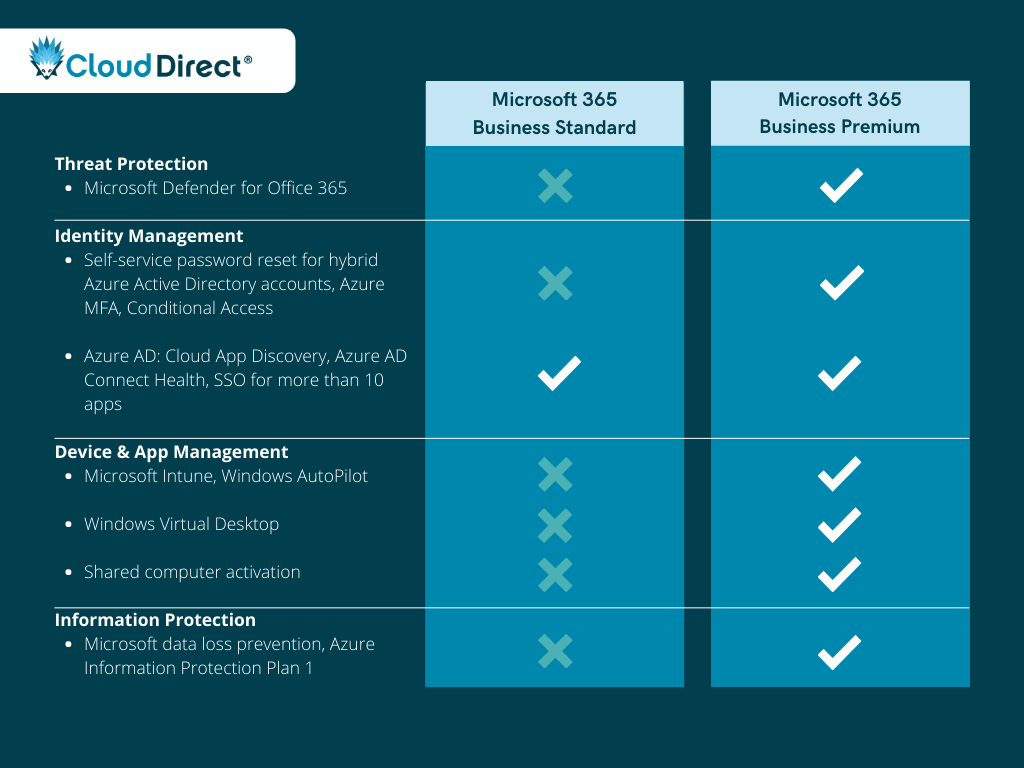
Why upgrade to Premium?
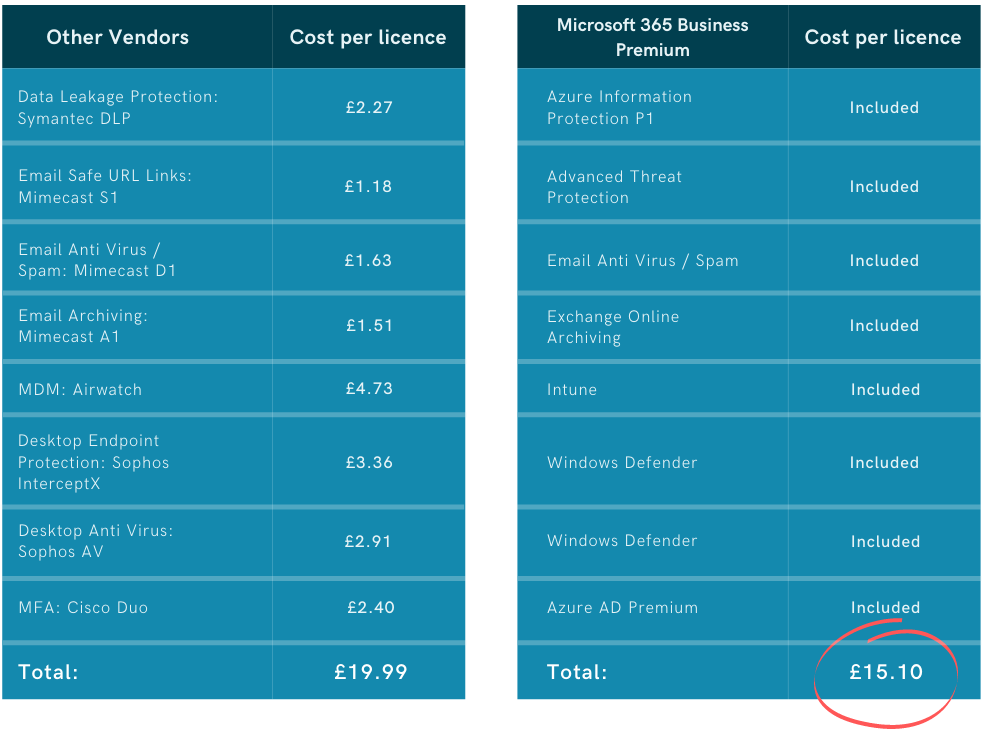
As is made clear by the above comparison, Microsoft 365 Business Premium is able to do a much better job of securing your organisation’s apps and data. While these additional security features do come with a bit of an extra cost, it’s a small price to pay for significantly reducing the risk of falling victim to cyber attacks. A 2018 study done by Kaspersky, found that the average cost of a SMB data breach is around £85,000. Additionally, when comparing the Microsoft 365 Business Premium licence fee to what it would cost to deploy these security features using third-party vendors, it’s clear that Business Premium offers excellent value for money:
Office 365 E3 vs. Microsoft 365 E3
The Microsoft 365 Enterprise plans effectively mirror the Office 365 Enterprise plans, with the addition of a Windows 10 Enterprise licence and Enterprise Mobility and Security (EMS) features. While Microsoft 365 Business Premium might be suitable for most businesses under 300 seats, it does have it’s limitations. This is where Microsoft 365 E3 comes into play. Microsoft 365 E3 can be seen as the minimum requirement for organisations that have complex or regulatory requirements around security and compliance.
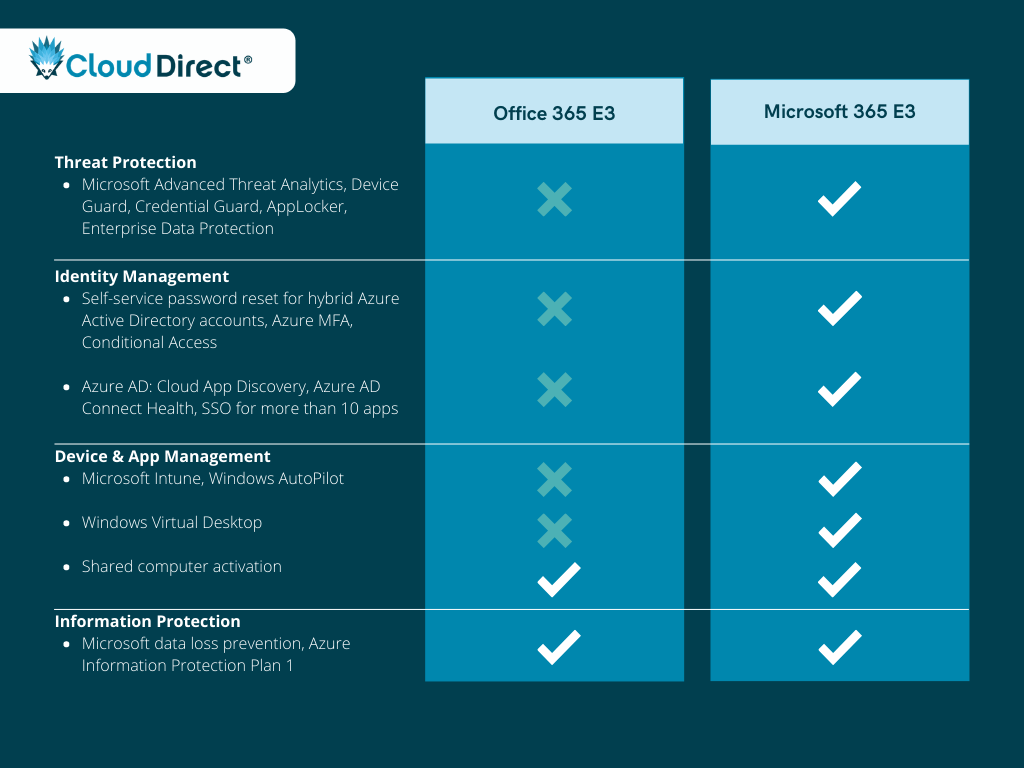
Why upgrade to Microsoft 365 E3?
As was the case with the previous comparison, Office 365 E3 will only provide you with the necessary tools to support your organisation’s productivity and collaboration, and won’t give you adequate protection against cyber attacks. Microsoft 365 E3 is built for businesses who want the best in productivity and collaboration while operating in a secure and compliant environment.
Microsoft 365 E3 vs. Microsoft 365 E5
Microsoft 365 E5 is Microsoft’s flagship licence and is the most complete productivity and security solution available. This licence is a significant step-up from Microsoft 365 E3, and includes many additional features, such as: Teams Voice capabilities, Power BI Pro licences and a variety of top-tier security technologies.

Why upgrade to Microsoft 365 E5?
As Microsoft’s ‘Hero’ licence type, Microsoft 365 E5 is built for organisations that want to have the best in productivity, security, and compliance. The additional security features allow you to have greater control and visibility over your Microsoft 365 environment. You’ll benefit from all of Microsoft’s best security features, including Microsoft 365 Defender for Endpoint, Office 365 and Identity, Azure Active Directory Premium Plan 2, and Cloud App Security. Additionally, The E5 licence gives you the ability to configure and automate security policies and regulations, which, in turn, leads to significantly less administrative overheads.
Conclusion
While there isn’t any one licence that is suitable for all organisations, we hope that you’ve gained a deeper understanding of Microsoft’s approach to security and how the various licences are able to safeguard your business. It’s important to understand that simply purchasing a high-end licence, such as Microsoft 365 E5, will not secure your working environment. These licences need to be properly configured and continuously monitored to protect your business.
Need help making sense of your organisation’s security? As an Azure Expert MSP and Gold Security Partner, our team of in-house security experts are well-equipped to help you understand which Microsoft 365 licence is best for you and how you’re able to leverage the power of Microsoft’s security solutions.

The retail and hospitality industry has completely transformed in the past decade thanks to the technology that’s become available. Businesses that are not keeping up with these changes are quickly falling behind.
Customers have more choice and convenience than ever thanks to the power of the internet, which is why high-quality service is one of the most valuable assets for retailers in 2020.
- 61% of retailers believe that efficient customer service is the most important factor in providing their customers with the best experience possible.
- Customers are willing to spend up to 16% more on products and services with companies that offer a better experience.
Microsoft has been building on the capabilities of Skype for Business within Microsoft Teams since September 2017. Now Teams has been developed into Microsoft’s one-stop-shop for chats, meetings, calling, collaboration, app integration and file storage. Your employees will have the ability to utilise these tools to provide the first-class customer service your customers deserve.
Here are three ways you can improve your customer service by using Microsoft Teams.
1. Provide staff with the tools they need to sell
It’s normal to see everyone equipped with a smart device, and this is starting to apply to employees on the shop floor too. It’s now becoming the norm for employees to have a mobile device with them whilst at work. Whether this is for taking orders, communicating with others or checking stock levels to avoid running back and forth to the stock room. Being mobile is the nature of the job within the retail sector – you need to share information with employees in different locations. Microsoft Teams allows employees to collaborate and communicate securely, from any location.
83% of the retail decision-makers and 74% of the store assistants surveyed agreed that shoppers will have a better experience when associates are equipped with technology.
And why’s that? Employees will have instant access to all the information they need, can pass on urgent information as a private or group message and communicate with the people they need in seconds. Microsoft Teams allows you to do all of this and more. It’s a centralised hub for you to store and share knowledge with other employees, whether they’re on the shop floor or head office.
79% of customers say being able to engage with knowledgeable store assistants is important.
Customers are now expecting staff to know the answers to all their questions when they are shopping. Microsoft Teams can be used to store and share all sorts of information on products and stock, employee training, in-store promotions and more.
2. Effective workforce management
Managing your team’s time can get complicated, and the challenge many managers face is staying on top of this. It’s important that you effectively manage and organise your team as it will allow you to save time and focus on what really matters. The first step to achieving this is having the right tools in place.
Organising your team’s time has never been easier with Microsoft Teams. A recently added feature in Teams is the schedule management tool, Shifts. It allows you to plan shifts that employees can review and make changes to within their mobile device, all in real-time.
Employees will have the ability to view their upcoming shifts, view who they will be working with, put in a request to swap or pick up extra shifts and request time off. They will be able to manage all of this within Microsoft Teams and managers will be able to add specific activities to a specific shift, allowing employees to ensure tasks get done.
Your team will be able to clock in and out of a shift with one tap on their mobile device, making it easier for both employees and managers to view timesheets at the end of the month.
The Microsoft Teams, Shifts feature provides managers with a holistic view of their team’s tasks and time. Allowing employees to be more efficient during their shifts.
3. Keep employees engaged and motivated
Shop floor workers play a key role in representing your brand. They’re the ones that interact with your customers daily, yet they typically have the highest turnover rate.
Microsoft Teams has a tool called Praise. Praise allows you to recognise your co-worker’s achievements and efforts and share them with the wider business. This feature will not only help motivate employees but keep them engaged when they’re on the shop floor interacting with your customer, helping strengthen and improve your brand.
Companies with highly engaged employees outperform their competitors by 147%.
Engaged employees are more likely to stay in the job for longer. By utilising this tool, you could see your high turnover decrease, giving you more time to train and invest in creating your next dream team.
Want to transform your customer service with Microsoft Teams?
If you’d like to find out more about how your retail or hospitality business can adopt Microsoft Teams, watch our webinar. Our Modern Workplace experts discuss the importance of customer service and how Teams can support this change.
54% of IT professionals believe that remote working is a greater risk to their business. But it doesn’t have to be when you have the right solution in place.
Azure Virtual Desktop (AVD) allows you to quickly deploy applications and desktops to enable secure remote working. But it does so much more than that. Azure Virtual Desktop offers:
- Simplified management
- Multi-session Windows 10
- Optimisations for Microsoft 365 applications
- Enterprise support for Remote Desktop Services (RDS) environments.
Deploying AVD is a key enabler to rolling out an effective remote working solution. Employees will have the ability to access any desktop and application from any device, in any location. But there’s more to Azure Virtual Desktop than creating a remote working environment. Lets dive into three of the key benefits of deploying AVD.
-
Reduce costs
Virtual Desktops can slash expenses from the get-go with minimal costs if the server is already up and running. You can also forget about any expensive hardware that requires the specific software and licences. But it doesn’t stop there. There’s additional savings to be made later down the line too. You’ll be able to streamline any upgrades, reducing the time IT spend repeating the same upgrade across different devices. Plus, you’ll have the ability to use existing Windows and Microsoft 365 licences to access Azure Virtual Desktop.
With the money saved from AVD, your business will be able to reinvest to enhance business operations and your future IT strategy.
-
Advanced Security
Moving your company’s data into a Azure Virtual Desktop will remove the risk of having any hardware tampered with, lost, or stolen.
AVD is built on the same security as Microsoft Azure. So, you’ll be able to reap all the benefits of identity management, backup, database security and more. Not to forget that Microsoft invests over $1 billion in security every year, has over 3,500 security experts dedicated to enhancing your security and Azure has more compliance certifications than any over cloud service provider. Meaning you have access to the latest and greatest security tools available.
-
Flexibility & Productivity
Increasing business productivity is an overarching objective of most businesses. Which brings us onto our last benefit of using Azure Virtual Desktop. Increased productivity.
AVD allows your IT to become more agile when desktops are hosted virtually. Employees will have the ability to access windows and applications from any device, regardless of their location. Allowing you to create a flexible and modern workplace. Azure Virtual Desktop seamlessly integrates with Microsoft 365 and Teams to enhance your employees productivity within the Microsoft Ecosystem.
In recent years, over 80% of businesses rely on employees to use personal devices for at least one app – hence the rise in the BYOD policy. A flexible workplace is a productive workplace.
Plus, it’s an added disaster recovery protocol. If a disaster ever hits, employees will be able to maintain productivity levels with the flexible workplace you’ve created.
But the benefits don’t stop there.
The benefits of deploying Azure Virtual Desktop are endless. Deploying AVD provides you with the flexibility you need to help grow your business in the cloud. Are you ready to take the plunge? Get in contact with our experts to discover more about the power of Azure Virtual Desktop.

Discover the best communication solution for On Direct Business Services Ltd Cloud Direct
Businesses across the Telecommunications industry have had to quickly rollout remote working solutions to ensure employees can work remotely when needed. There are plenty of platforms out there to provide your employees with the ability to seamlessly communicate and collaborate whilst working remotely. The top three solutions that have taken the market by storm are Zoom, Microsoft Teams and Google Hangouts. Whilst they all have similar features at a glance, there are some key differences that you should consider before investing. In this guide we compare the three solutions, so you can see which is best suited to support your business needs.
At a glance…
| Feature list | Microsoft Teams | Zoom | Google Hangouts |
|---|---|---|---|
| Starting price | $5.00 | £11.99 | Custom |
| Platforms supported | Web based, iPhone App, Android App, Windows App | Web based, iPhone App, Android App | Web based, iPhone App, Android App, Windows App |
| HD Audio and Video Conferencing | ✓ | ✓ | ✓ |
| Record any call | ✓ | ✓ | ✓ |
| Transcribe any call | ✓ | ✓ | ✓ |
| Screen share | ✓ | ✓ | ✓ |
| Instant messaging | ✓ | ✓ | ✓ |
| Take control of someones screen within a call | ✓ | ✓ | ✓ |
| Integrates with other apps and bots | ✓ | ✓ | ✓ |
| Blur background on video calls | ✓ | ||
| Comprehensive security controls | ✓ | ||
| Fully integrates with Office 365 | ✓ |
There are free versions available of all three platforms, but for this blog post, we are comparing the paid-for licenses.
You can see from the surface there isn’t much difference between the platforms. But once we dig deeper we will unveil the real differences between the products.
Microsoft Teams
Microsoft Teams is a unified communication and collaboration platform made up of an instant messenger, video conferencing, file storage and application integration. There are now 44 million daily Microsoft Teams users, making this Microsoft’s fastest-growing product. Microsoft Teams is more than just a communication tool – it empowers your employees to collaborate even whilst working remotely. Microsoft Teams will allow you to fully integrate with Office 365, meaning all calendar invites, files and chats will simultaneously sync with the rest of your modern office.
Communication
Some of the key communication features of Microsoft Teams include:
- Internal and external video conferencing with the ability to blur backgrounds – minimising any distractions.
- Audio conferencing with the ability to enable in-line transcriptions of your calls.
- A seamless file and screen sharing experience which others can take control of.
- Instant messaging between other employees. Either one-to-one or in groups.
- The ability to record any video or audio call – allowing you to share it or relate to it later.
Collaboration
But it doesn’t stop there. Microsoft Teams is not just a powerful communication platform, but also a place for employees to collaborate effectively. Some of the key Teams collaboration features are:
- Share any files with teams or individuals and edit them in real-time.
- Access Microsoft Teams from any device – allowing employees to work from any location, anytime.
- There are endless bots and integrations to improve
- Seamlessly integrate with your email, allowing you to access contacts, emails and shared calendars.
Security
Microsoft invests over $1 billion every year to improve the security of their products. Microsoft Teams is built on the security and compliance capabilities of Office 365 – so you can be reassured your business will stay protected whilst communicating through Teams. You’ll reap all the security benefits of Office 365, such as advanced threat protection and data loss prevention. But it doesn’t stop there. Microsoft Teams meets the compliance obligations of over 42 national, regional and industry-specific regulations.
And if that doesn’t demonstrate how secure Microsoft Teams is, internationally renowned computer security expert Professor Alan Woodward from the University of Surrey, recently said that “where I have taken part in government briefings where it is for the participants’ ears only we have used Microsoft Teams”.
Did you know, Microsoft has created a Zoom for Teams add-on, allowing you to join external Zoom calls within Microsoft Teams.
Zoom
Zoom is a cloud-based audio and video communication platform, allowing people to communicate across different devices. If you’re looking for a platform where you can confidently communicate with others, then Zoom may be right up your street. In 2020, Zoom has received 2.22 million new users, most of which are people wanting to stay in contact with their friends and family during COVID-19.
Communication
Some of the key communication features are as follows:
- Full HD video and audio.
- Ability to record and transcribe any session.
- Share your screen with other participants.
- Can support up to 1,000 participants.
- The option to upload images as backgrounds.
Collaboration
- Integrates with Outlook and Gmail.
- Screen sharing and co-annotation.
- Chat within a group you’re in.
- Have the ability to share any files with other participants.
Security
Zoom prides itself on its end-to-end encryption. However, Patrick Wardle, a former NSA hacker and now principal security researcher at Jamf, has recently identified two bugs within Zoom that he shared with TechCrunch. One of the bugs allows an attacker to take control of someone’s computer, allowing them to install malware or spyware. The second bug exploits a flaw in how Zoom handles the webcam and microphone on Macs. Zoom, like any app that needs the webcam and microphone, first requires consent from the user.
Google Hangouts
Hangouts is Google’s communication platform. It started as part of Google+ before becoming its standalone product in 2013. It’s safe to say it sits between Zoom and Microsoft Teams in terms of functionality. Again, Google Hangouts has become increasingly popular amongst friends and families to communicate during COVID-19. But here’s how it could support your business:
Communication
Google Hangouts provides employees with the basics when it comes to a communication platform.
- You’ll have an instant messaging feature at your disposal.
- All audio and video calls will be in HD.
- Have the ability to use Hangouts across multiple devices.
Collaboration
Similar to Microsoft Teams, Hangouts will integrate with the rest of your G-Suite products. But how good is Hangouts for collaboration?
- Share your screen with other participants.
- Have full integration with your G-Suite.
Google also pride themselves with end-to-end encryption within Hangouts. Meaning if you did want to use it as your business communication tool, you could.
What’s the right communication platform for On Direct Business Services Ltd Cloud Direct?
So, there we have it. If at this point, you’re still unsure on what platform to use, fear not. If you’re just looking for a simple audio and video conferencing tool, then Zoom or Google Hangouts might be the platforms for you… depending on how security conscious your business is of course. But if you’re looking more comprehensive collaboration tool, Microsoft Teams is your answer. Unified communication and collaboration platform which seamlessly integrates with your existing Microsoft applications to empower your employees.
For us, there’s a clear winner. And that’s Microsoft Teams. But it’s not just us who thinks that. 91% of the Fortune 500 already use it.
Deciding on the right office suite for your business can be challenging. There are ultimately two key players to choose between – Microsoft 365 and Google Workspace.
From the early 2000s, Microsoft dominated the world of productivity, until 2006 when Google came along and launched their suite of products. Since then Microsoft and Google have been the biggest rivals in the productivity space.
To help you decide which of these two office suite giants is best suited to your business, we put Microsoft 365 and Google Workspace side-by-side to see how they compare. Whilst on the surface they seem to be very similar in terms of functionality, once you scratch the surface there are some very different features that could sway your decision.
At a glance…
| Microsoft 365 | Google Workspace | |
|---|---|---|
| Deployment | Cloud and hybrid | Cloud |
| Offline access | Yes | Limited to certain applications |
| Real time collaboration | Yes | Yes |
| Desktop application access | Most plans | No |
| Online application access | Yes | Yes |
| Storage | From 50GB email and 1TB of drive storage per user | From 30GB combined email and drive storage per user |
At a glance, the two products look similar, don’t they? But let’s take a deeper dive into the key differences between the solutions.
Microsoft 365
Microsoft 365 was launched in 2011 to help “bring together” Microsoft’s existing productivity tools such as Word, PowerPoint, and Outlook into an “always up-to-date cloud service”. Recently, Microsoft announced new licence changes, making Microsoft 365 the new Office 365, which now has over 200 million monthly active users world-wide.
Cloud storage
Migrating to Microsoft 365 takes your business into the cloud. And when moving into the cloud you want to ensure you have enough space to store all your businesses data. All Microsoft 365 business plans come with 1TB of OneDrive storage and 50GB of email storage per user, with the ability to buy more if needed.
Alongside their cloud storage, Microsoft offers hybrid solutions.
Applications
Microsoft 365 is an application powerhouse with some of the leading productivity tools to help your business achieve fearless growth.
Office applications:
- Word: Take your writing to the next level with the ability to collaborate with anyone from anywhere in real-time.
- Excel: Gain control of your data. You can view and edit a spreadsheet in real-time from any location, providing you with a better picture of your data.
- PowerPoint: Bring your A-game to your next presentation with PowerPoint. Have the ability to co-author with other presenters to present with confidence.
- SharePoint: Simply share and manage your organisation’s content in one place for seamless collaboration.
- OneDrive: Take your files with you. OneDrive allows you to save your files in the cloud so you can share and collaborate with employees from any device.
Communication tools:
- Outlook: Have a centralised application with a unified view of your email, calendar, contacts, and files. Keeping you more organised than ever before.
- Teams: Teams allows you to chat, meet, call, and collaborate in a centralised and secure system. On any device. No matter where you are.
- Yammer: Improve and enhance employee engagement on a professional social media platform. Start keeping your employees informed, aligned, and moving forward.
Security
Microsoft invests over $1 billion into their products’ security every year. Security is at the forefront of Microsoft’s mind, to ensure that your business is secure when using their products.
Some of the security features you can take advantage of are:
- Advanced Threat Protection (ATP): Guard your employees from any attack designed to compromise your business information. ATP will provide you with; attachment scanning, AI analysis to identify and remove threatening messages and automatic link scanning on any emails to ensure it’s not part of a phishing attack.
- Data Loss Prevention (DLP): DLP will automatically identify any sensitive information (for example credit card details, security numbers and passport number) to prevent sharing this information with anyone outside your organisation.
- Multi Factor Authentication (MFA): Enabling MFA requires employees to provide multiple forms of certification to prove their identity when signing into their account. MFA means your employees accounts are 9% less likely to be compromised.
- Microsoft 365 security centre: The security centre enables you to monitor and manage all identities, data, devices, apps and infrastructure all in one place.
- Intune: Manage your devices and applications with ease with an integrated endpoint management platform. With Intune you can automate deployment, provisioning, policy management, app delivery and updates.
- Secure Score: Microsoft’s Secure Score allows you to improve your businesses security posture through intelligent insights and guidance. Read our Beginners Guide to Microsoft’s Secure Score here.
Price
When creating the Microsoft 365 solutions, Microsoft created subscriptions that would be suitable for everyone. In this they considered the cost when creating pricing to ensure they were affordable. Meaning you’ll get more bang for your buck.
| Plan | Cost per user per month |
|---|---|
| Microsoft 365 Business Basic | £3.80 |
| Microsoft 365 Business Standard | £9.40 |
| Microsoft 365 Business Premium | £15.10 |
| Microsoft 365 F3 | £7.50 |
| Microsoft 365 E3 | £28.10 |
| Microsoft 365 E5 | £48.10 |
Google Workspace
Google Workspace has now passed 2 billion users, but only 5 million of those are reaping the benefits of the paid platform.
Cloud storage
Googles cloud storage starts off much lower on their Starter plan at 30GB but dramatically jumps up to unlimited on the Enterprise plan – as does Microsoft 365 with their enterprise plans). So, it depends on the sort of storage your business needs.
Applications
The applications Google have included in Google Workspace are very similar to the ones Microsoft include in their subscriptions.
Connect
Google Workspace allows you to connect with other employees with ease. Within the solution you’ll have access to:
- Gmail: Gmail is a secure and smart inbox, allowing you to do more with your inbox.
- Calendar: Better manage your time and plan with the calendar function
- Google Hangouts: Google Hangouts is a platform that allows you to seamlessly video call and message with other employees. Find out how Google Hangouts compares to Microsoft Teams.
- Google Drive: Store all of your Google Docs, Sheets and Slides all in one place that allows you to easily share them with your wider team.
Create
Google Workspace prides itself on allowing businesses to create whatever you need to get the job done. You’ll have access to three key solutions to help you be productive:
- Docs: Google Docs is a cloud-native word processing application that allows you to collaborate with other employees in real time.
- Sheets: This is Googles version of Microsoft Excel and allows you to manage and organise all your data in an online spreadsheet.
- Slides: Google Slides enables you to create slide decks in the cloud.
Security
Security is at the heart of any decision when looking into new software. And Google have the basics in place across all pricing plans with two-step verification, Group-based policy controls, Advanced and Protection Programme and Endpoint management. All of this will provide you with the basic security features you need to start keeping your business secure – but many businesses want something more than that. And the higher Google Workspace plan you’re on, the more security features you’ll have access to – for example Vault and Data Loss Protection.
Price
Google has created four clear pricing plans to make it easy for businesses to select the one right for them. Whilst there is a clear difference between the plans the key difference is the amount of storage you have and the features you have access to.
| Plans | Cost per user per month |
|---|---|
| Business Starter | £4.60 |
| Business Standard | £9.20 |
| Business Plus | £13.80 |
| Enterprise | No standard pricing |
What’s the right office solution for me?
For us there’s a clear winner. And that’s Microsoft 365 – thanks to its security capabilities and variety of plans to suite any business of any size.
Cloud storage: This is the bread and butter of a cloud productivity suite. You need to have enough storage in order for your data to be securely saved. Microsoft offers a generous amount of storage with the ability to add more if and when needed, but Google allows you to go that extra mile and will allow you to have unlimited storage if needed.
Security: No one gets security like Microsoft does. With their huge yearly investment into security, its safe to say they’re in the best position to keep you secure. Whilst Google has fantastic security tools available, some of which are very similar to the ones in Microsoft 365, Microsoft storms ahead with their comprehensive security solutions.
Price: Microsoft have created a variety of pricing plans to help suite every business. Whilst Google have created four strong pricing plans, Microsoft wins us over with their vast range of plans suited for everyone.
Office applications: In terms of features, applications and tools, there’s not much in it. From the surface they come with variations of the same tools, but within the tools the functionality is quite different. Did you know, if you’re using Google Workspace you need basic office applications, such as Excel and Word, in order to collaborate with third-parties – meaning you could be paying twice if you go for Google over Microsoft.